
WorkDial dashboard
WorkDial's dashboard is a real-time analytics console for supervisors and admins: agent performance, live activity, historical data, and CTI number usage.
Introduction
The dashboard shows agent call performance, live call activity, historical call data, CTI number usage, and call responsiveness and SLAs. Teams can track inbound and outbound activity, monitor agent availability, and evaluate calling efficiency within Salesforce.
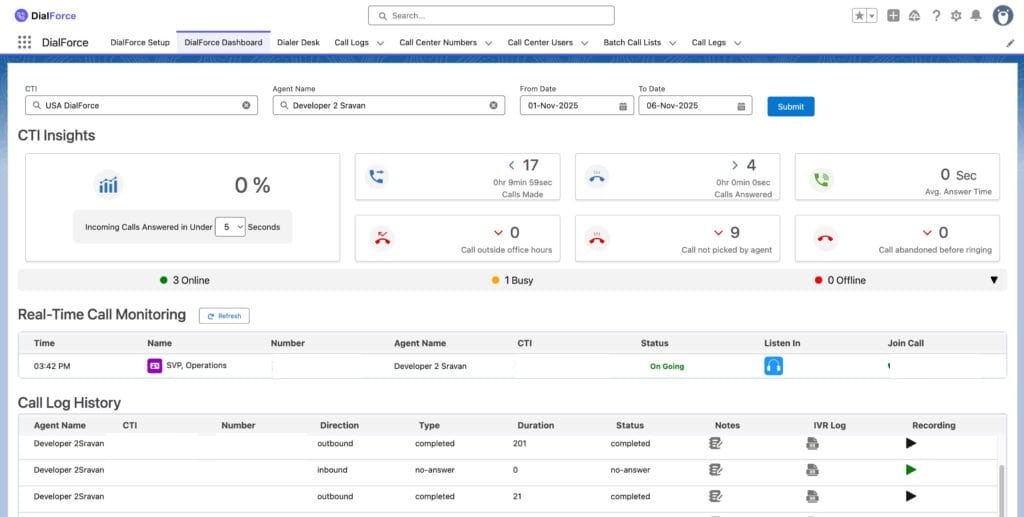
The dashboard contains four major components:
- CTI Filter
- CTI Insights
- Real-Time Call Monitoring
- Call Log History
Pre-requisites
Before using the WorkDial dashboard, ensure:
- The user has access to the WorkDial Dashboard and related objects.
- Agents are properly mapped to their CTI Numbers.
- Call logs and data syncing are active in Salesforce.
Note: When you select a CTI Number, the Agent dropdown automatically displays only the agents assigned to that CTI Number.
CTI Filter
The CTI Filter is the control panel for refining dashboard data. To apply filters:
- Open the WorkDial Dashboard. The filter bar displays at the top.
- Select a CTI Number. The Agent dropdown auto-updates based on the selection.
- Select Agent(s). Choose one or multiple. Use the search box to find agents quickly.
- Select a Date Range: “From Date” (start of the reporting period) and “To Date” (end of the reporting period).
- Submit the filter. Click Submit to refresh CTI Insights, Call Log History, and Real-Time Call Monitoring.
CTI Insights
The CTI Insights section summarizes agent performance based on filter selections, highlighting productivity, responsiveness, missed call volume, and SLA-based behavior. This section updates automatically when filters or the call threshold timer adjust.
Incoming Calls Answered Under [Seconds]: at the top of CTI Insights, select a time threshold (10, 20, or 30 seconds). The dashboard recalculates incoming calls answered within that duration to help supervisors evaluate responsiveness and SLA adherence.
Performance metrics explained
1. Calls Made. Displays total outbound calls made by the selected agent(s) and total connected call duration. Helps you understand outbound productivity and customer engagement quality. Example: 398 outbound calls made, totaling 2 hours, 21 minutes, 39 seconds of talk time.
2. Calls Answered. Shows total inbound calls successfully answered and total talk duration across these calls. Helps measure agent responsiveness to incoming customer communication. Example: 109 calls answered with a combined talk duration of 4 hours, 55 minutes.
3. Average Answer Time. Shows the average time taken to answer calls under the selected threshold and the total combined answer duration. Lower values indicate higher responsiveness. Example: average answer time 12 seconds.
4. Calls Outside Office Hours. Displays the number of calls received beyond business working hours. Helps organizations understand after-hours demand and plan staffing accordingly. Example: 14 calls received outside business hours.
5. Calls Not Picked by Agent. Shows the number of incoming calls not answered. Helps identify under-staffing, missed customer opportunities, and response delays. Example: 281 calls not answered by the assigned agent.
6. Calls Abandoned Before Ringing. Displays incoming calls customers ended before ringing reached the agent. Can indicate customer impatience, network delay, IVR complexity, or high call volume. Example: 0 calls abandoned before ringing.

Real-time agent status
Supervisors can view an agent’s live status:
- Online
- Busy
- Offline
The dropdown also shows the last updated timestamp, letting supervisors track recent agent activity.
Real-time call monitoring
This section lets supervisors monitor live call activity. To use it:
- Click Refresh to load the latest live calls.
- Each active call displays Customer Name, Customer Number, Agent Name, CTI Number, Call Start Time, Call Status (ongoing, completed), and a Join Call option.
Listen In / Join Call. If your profile has permission:
- Use Listen In to silently monitor an agent’s ongoing call.
- Use Join Call to enter the call via conference for assistance or escalation.
This is suited to quality assurance, training, and live customer support intervention.
Call Log History
This section shows historical call details for the selected CTI Number, Agent, and Date Range. Each entry includes:
- CTI Number: the number used by the agent.
- Customer Number.
- Call Direction (Inbound/Outbound).
- Call Status (Completed, Missed, Canceled).
- Call Duration.
- Agent Notes.
- Call Recording (available for playback).
This is the primary area for checking past interactions, reviewing customer communication, and validating agent logs.
In summary
The WorkDial dashboard gives a complete overview of agent calling performance. It lets supervisors:
- Analyze inbound and outbound activity.
- Measure SLA adherence.
- Monitor live calls.
- Review detailed call logs.
- Evaluate agent responsiveness and productivity.
With these insights, organizations can improve customer experience, optimize staffing, and maintain high-quality call operations within Salesforce.