Connect Twilio & WorkDial in Salesforce
Connect your Twilio account to WorkDial in Salesforce and configure your phone numbers for call center operations, so inbound and outbound calls route.
Open WorkDial Setup
- Navigate to Salesforce where WorkDial is installed.
- Open the App Launcher (the 9 dots, top left).
- Search for and select the WorkDial app.
Set up the call center
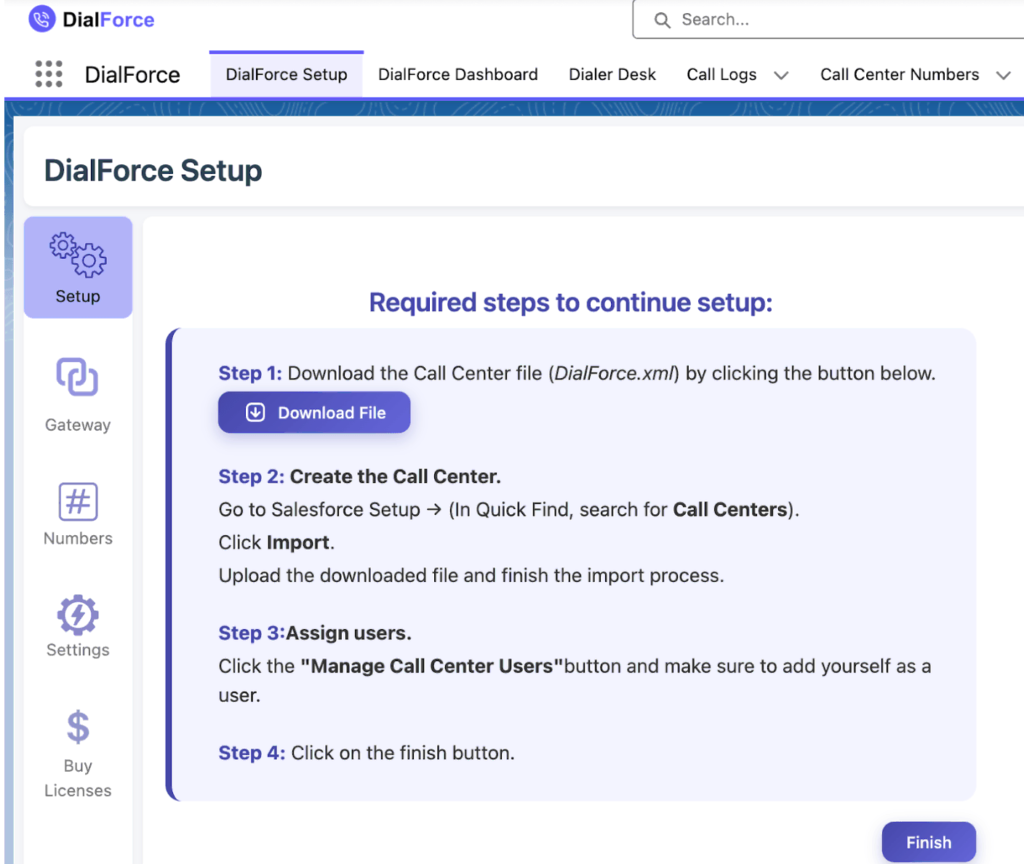
- The WorkDial Setup tab opens by default.
- Complete the first three setup steps to configure gateway and number settings.
- Click the Finish tab to unlock the gateway and additional tabs. This is a one-time setup.
A video guide appears on the right side with call center creation instructions.
Access Gateway settings
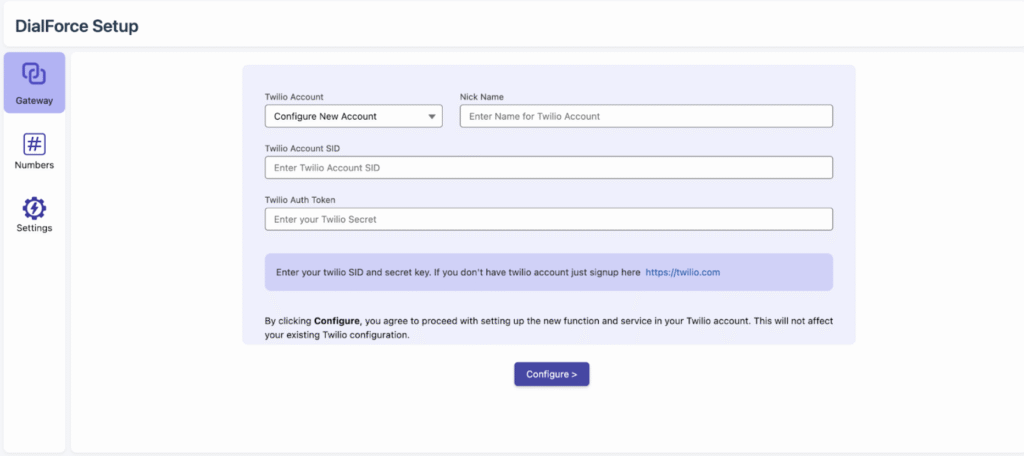
Click Gateway from the left menu on the WorkDial Setup tab.
Configure your Twilio account
- Under the Twilio Account section, click Configure New Account.
- Fill in the required fields:
- Nick Name: enter a business name, department name, or Twilio subaccount identifier.
- Twilio Account SID: paste the Twilio Account SID you copied earlier.
- Twilio Auth Token: paste the Twilio Auth Token you copied earlier.
- Click the Configure button.
WorkDial completes the background setup automatically. If it fails, click Retry.
Configure your Twilio number
- Once configuration succeeds, your purchased Twilio numbers appear in a list.
- Select the number you want to set up.
- Click the Setup button to complete configuration for that specific number.

Note: If you use an existing Twilio account with numbers configured for other purposes, a warning appears. Clicking Setup erases old configurations for the selected numbers only; unselected numbers stay untouched. To keep separate environments, create a Twilio subaccount and use its Account SID and Auth Token.

Configuring a number’s settings (country, access, business hours, and busy message, among others) takes about 2 to 5 minutes.
Country configuration
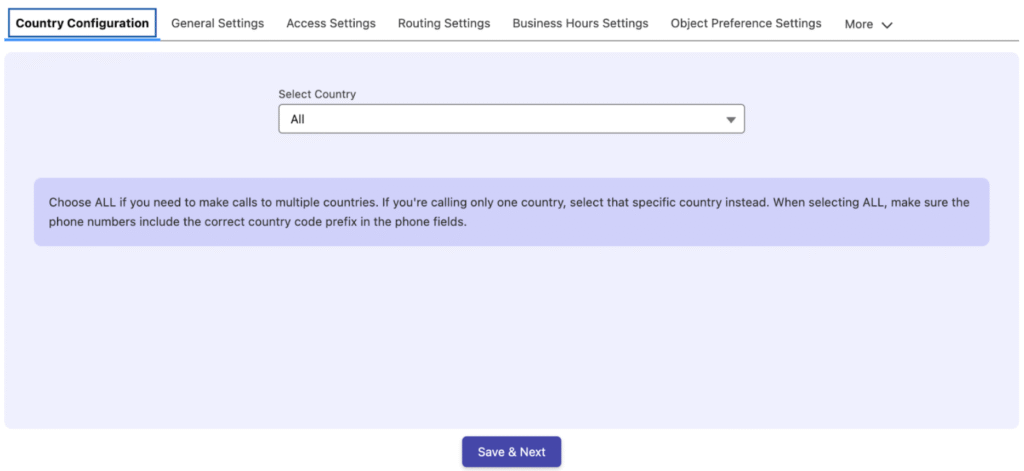
This setting automatically appends the country code prefix to phone numbers without modifying the data stored in Salesforce. It does not restrict calls to one country; calls to multiple countries remain possible.
- ALL: enables multi-country calling. When ALL is selected, either choose the country each time or ensure phone fields already include the correct country code prefix (for example, +1 for the USA).
- Specific country: choose a single country (for example, USA or Canada) for streamlined call routing.
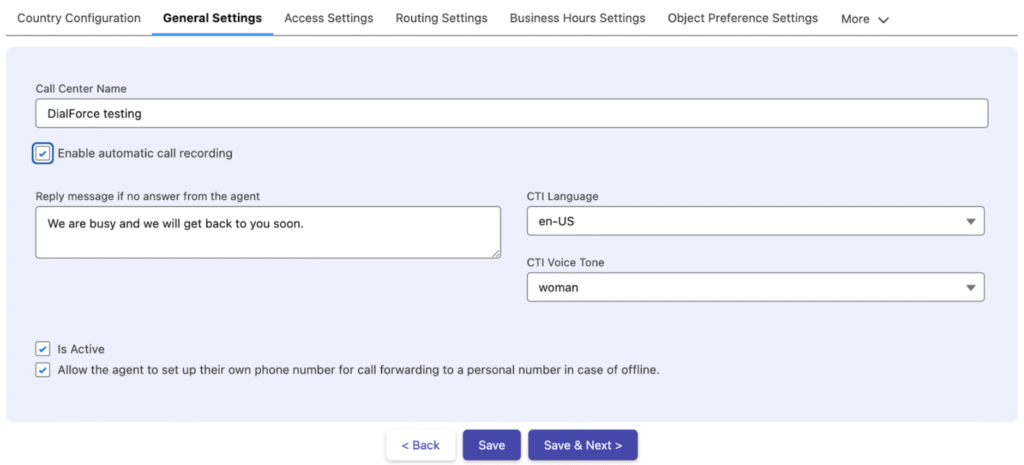
General settings
- Define the Call Center Name for identification in reports and logs.
- Enable Automatic Call Recording by checking the box for quality assurance.
- Set the Reply Message if No Answer by typing a voice note (for example, “We’re unable to connect you now; please leave a message”) and saving.
- Select the CTI Language and CTI Voice Tone for customized voice message delivery.
- Check Is Active to activate the assigned number.
- Enable Allow Agent to Set Up Call Forwarding to Personal Number for offline call forwarding scenarios.
Access settings
You can assign a number to each user or assign a single number to a queue. The CTI Access Type options are:
- User-Based: assigns the number to a single user for exclusive use.
- Queue-Based: allows multiple agents to use the same number (queue names are configured in the backend). See the Salesforce documentation for queue creation. You can select Contact, Lead, or other objects during queue creation without affecting functionality.
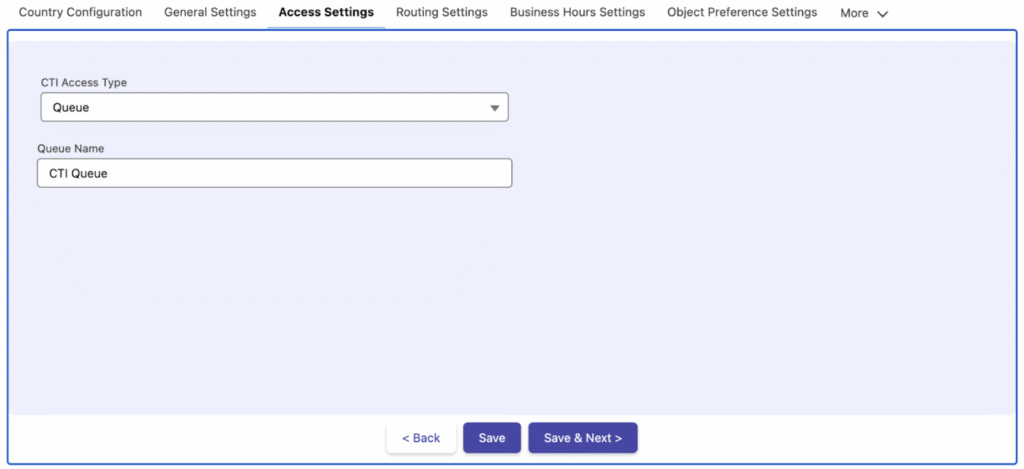
Note: Routing Settings enable only with Queue-Based selection. They stay disabled for User-Based access.
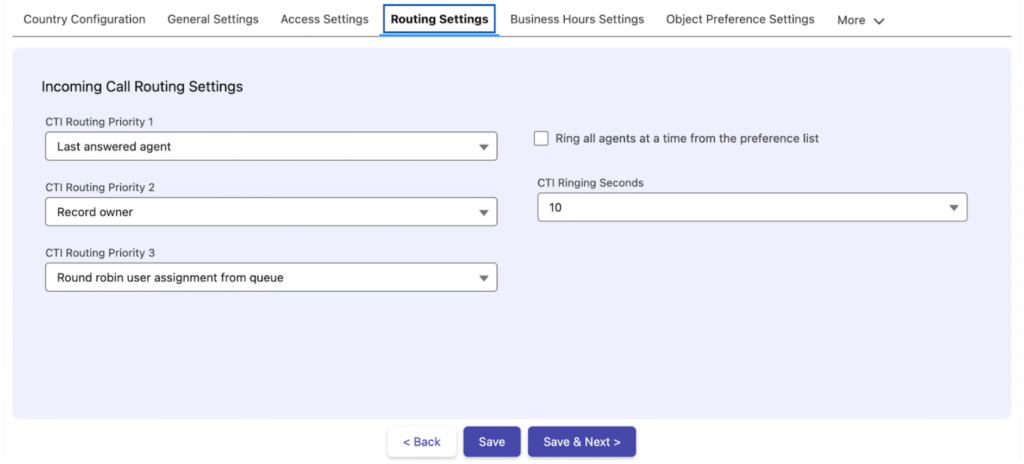
Routing settings
These apply only with Queue-Based routing:
- Set the CTI Routing Priority with three options (Priority 1, 2, 3) based on your requirements.
- Enable Ring All Agents at a Time from the Preference List to contact all agents simultaneously, or leave it disabled for sequential ringing in a set order.
- Adjust CTI Ringing Seconds to define the ringing duration from the available options.
Business hour settings
- Assign Business Hours to the Sender ID.
- Create business hours by going to Setup, searching “Business Hours” in Quick Find, selecting Business Hours, and clicking New Business Hours.
- For calls outside business hours, select a Business Action Type:
- Reply with Message: enter a custom message (for example, “We are not available at this moment”) in the CTI Business Hours Message section.
- Route to Other Call Center Number: choose a number from the dropdown to redirect the call.
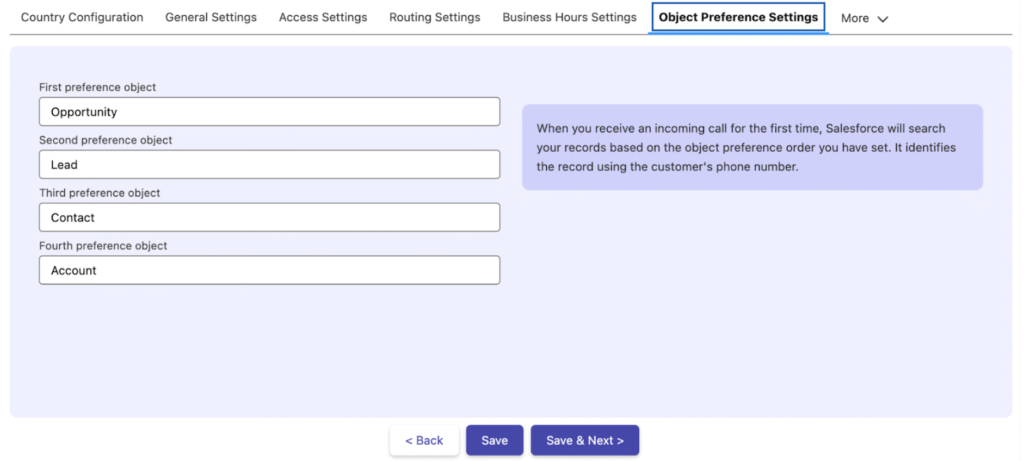
Object preference settings
When an incoming call has no prior outbound record, the system searches records by phone number in the order you configure. For example, if Contact is the first preference and Lead is the second, it searches Contact records first, then Lead records if no match is found. You can configure up to four objects in this order.