
Connect a CTI number to Twilio
Configure a new CTI number by connecting it to a Twilio account, new or existing, so calls route through WorkDial inside Salesforce for that customer.
Open the Gateway configuration page
Navigate to the left sidebar of your application, then click the Gateway icon to open the Twilio Account Configuration page.
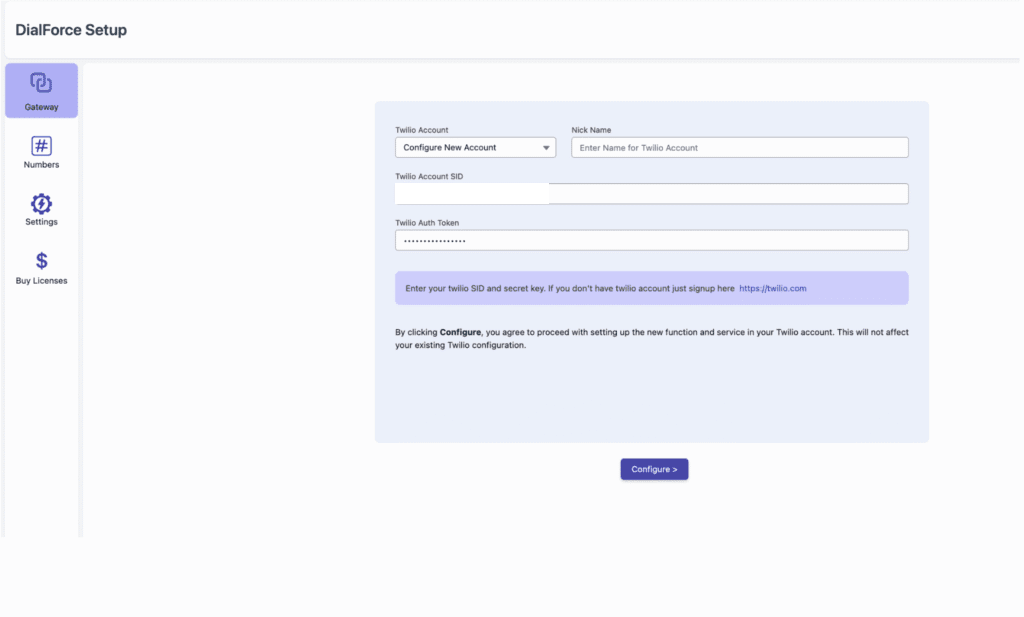
Choose the account type
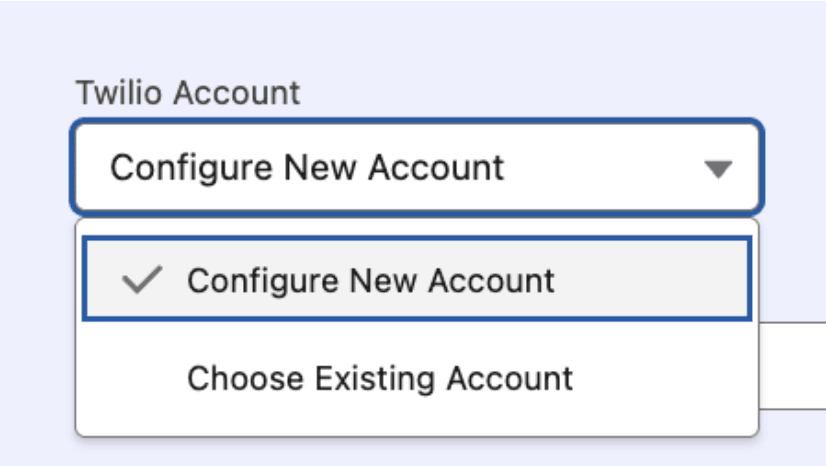
Two options appear in the Twilio Account section:
- New Account: for customers without an existing Twilio account.
- Existing Account: for customers with a pre-configured Twilio account.
Select the option that fits your situation.
Create a new Twilio account
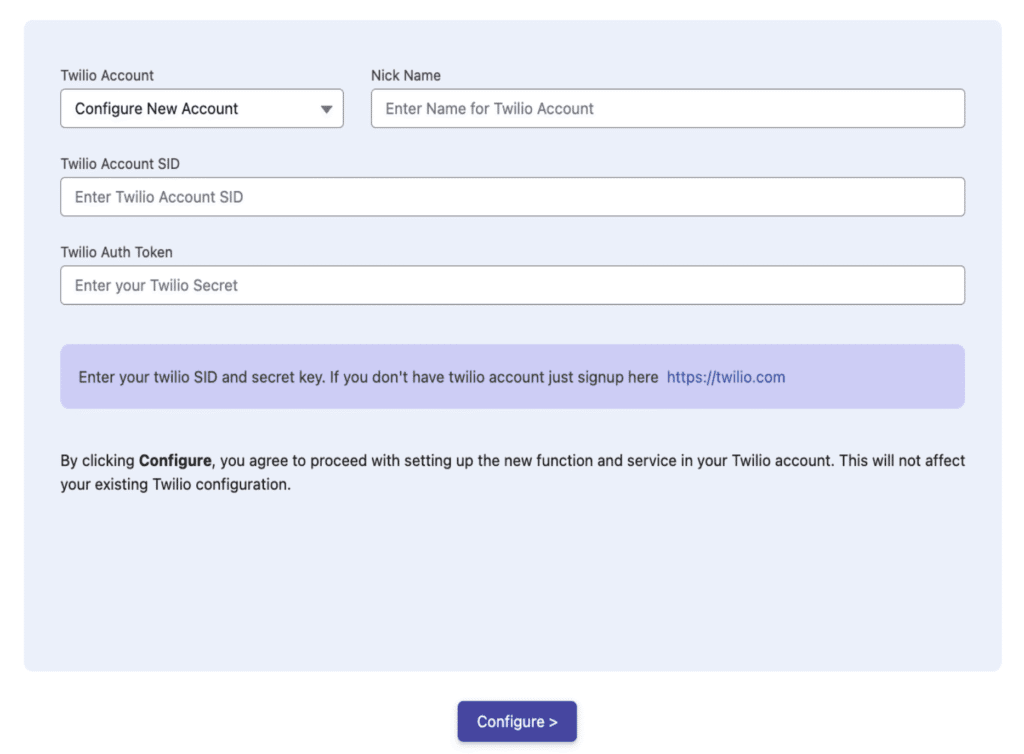
If you select New Account:
- A form requests the following details:
- Nick Name: a reference name for app identification.
- Twilio SID: the Account SID from the Twilio dashboard.
- Twilio Auth Token: the authentication token from Twilio.
- Enter these details carefully, as they are required for authentication.
- Click Save to create and link the new Twilio account.
The application then connects to the customer’s Twilio account for further configuration.
Use an existing Twilio account
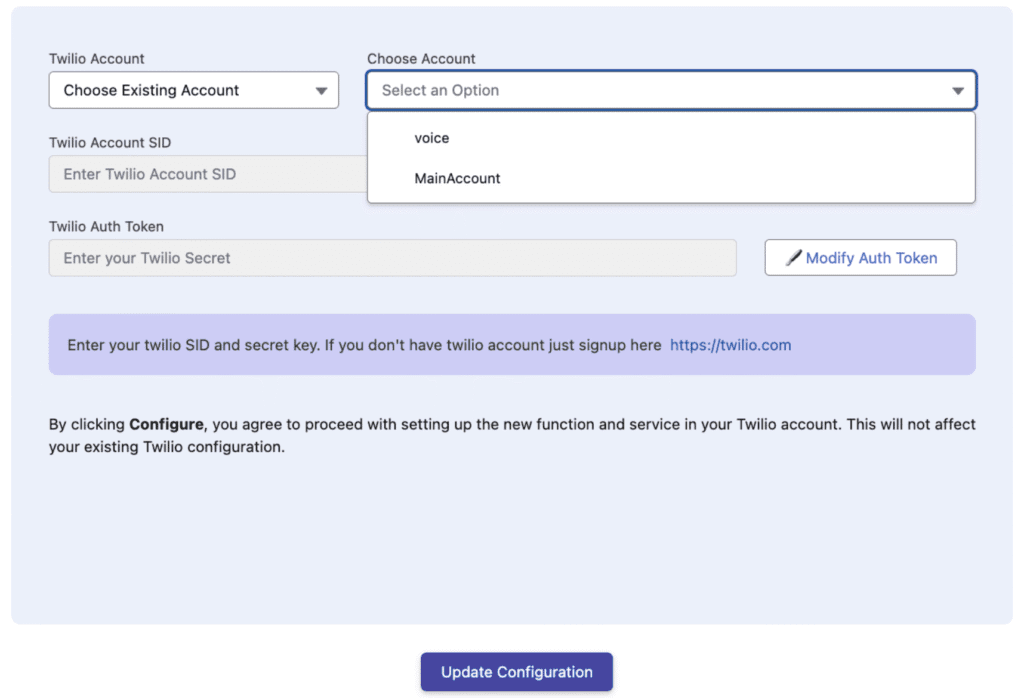
If you select Existing Account:
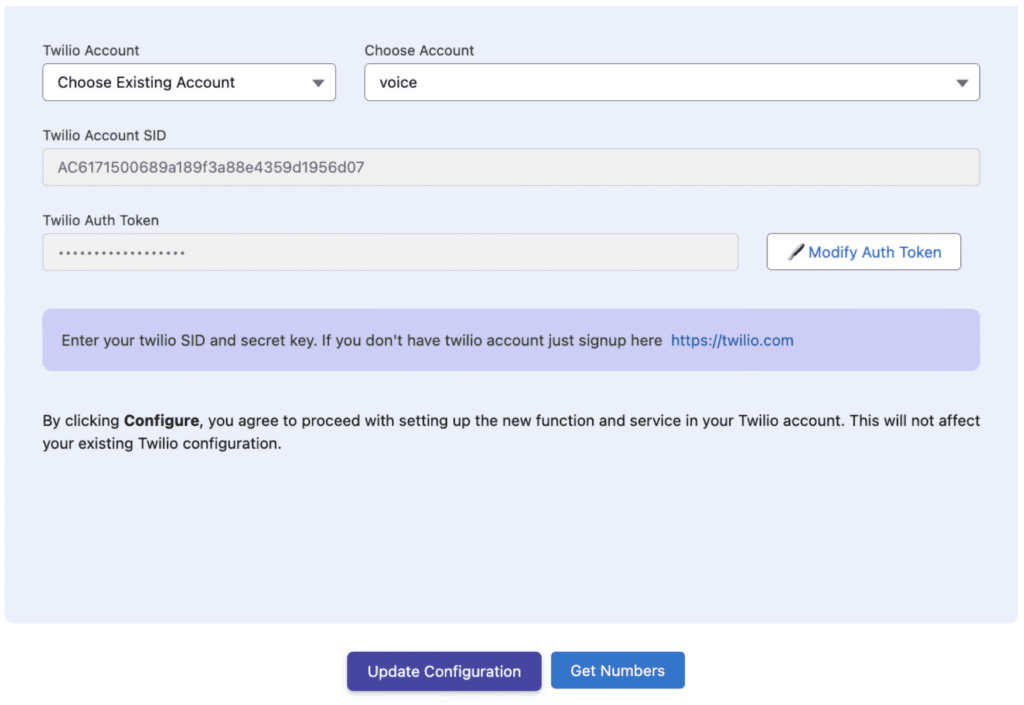
- A dropdown labeled Choose Account appears.
- Select the desired Twilio account from the list.
- The account details display:
- Twilio Account SID: the connected account ID.
- Twilio Auth Token: the authentication token.
Update authentication details
When the Twilio Auth Token changes or requires updating:
- Click the Modify Auth Token button.
- Enter the new Auth Token exactly as shown in the Twilio dashboard.
- Click Update Configuration.
The application syncs the updated authentication details and refreshes the Twilio-related configuration, including environment variables, serverless code, and code deployment and updates.
Retrieve Twilio numbers
Once account configuration is complete:
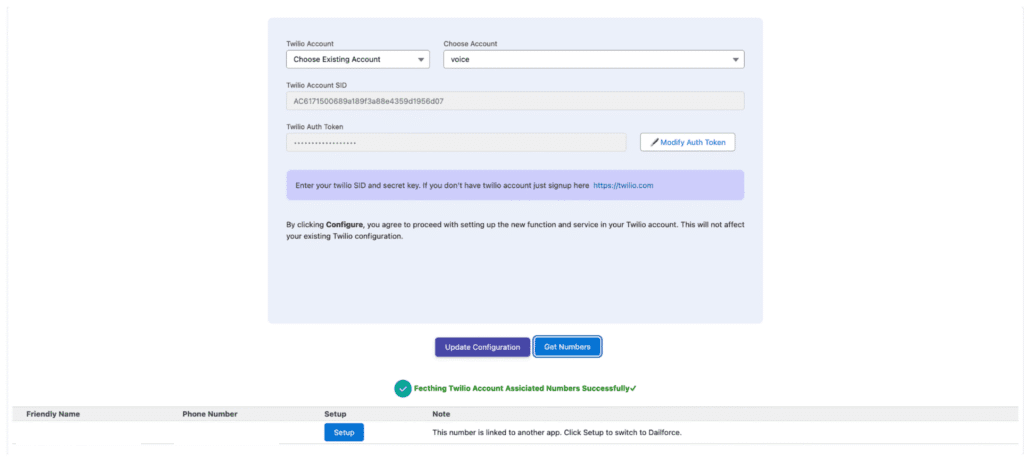
- Click the Get Number button.
- The application fetches and displays all Twilio phone numbers linked to the selected account.
- View the number list and the status of each number (active, inactive, and so on).
All numbers available for CTI use become visible.
Set up or edit number labels
To organize and identify numbers:
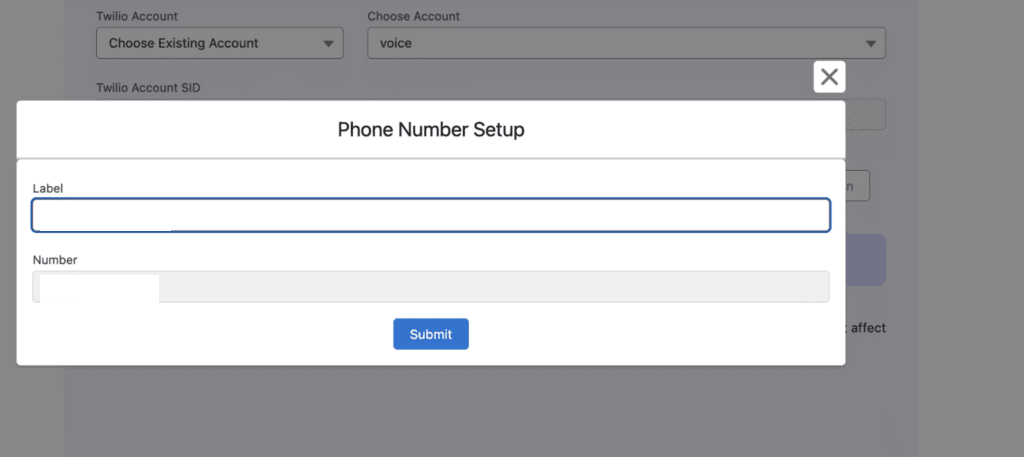
- Click the Setup button next to the desired Twilio number.
- A popup window appears.
- Enter or edit the number label (for example, “Support Line” or “Sales CTI”).
- Click Save.
The number label updates in both the application and the Twilio account.
Finalize the configuration
After updating the Twilio account and labeling the numbers:
- CTI number setup is complete.
- The configured number works for both inbound and outbound calls via Twilio within the application.
- All account updates and number configurations sync automatically between the application and Twilio.