WorkDial
Pricing Help Articles Blog Contact
Request a Demo Start a Trial Start a Trial

Functional Docs

  • Conference & Call Transfer
  • WorkDial Dashboard – Complete User Guide
  • Mobile Call Feature – Simple & Detailed Explanation
  • Smart Panel (Agent Workspace)
  • In-Call Controls (Mute, Hold, Transfer, Conference)
  • Taking Notes & Call Dispositions
  • Sending SMS/MMS During a Call
  • Accessing Related Records During Calls
  • Routing Methods in WorkDial
  • Business Hours & Out-of-Hours Routing
  • Offline Routing Scenarios
  • IVR Setup & Logs
  • Creating a Batch Call List
  • Explore WorkDial Smart Dialer

Get Started

  • Subscription Purchase and Management Guide (Step-by-Step)
  • Setup
    • 1. Package Installation
    • 2. Twilio Signup, Account Upgrade, and Number Acquisition
    • 3. Connect Twilio and WorkDial in Salesforce
    • 4. Users Assignment at Call CentreĀ 
    • 5. Add the Dialer to the App Menu (Utility Window)
  • Basic Configuration
    • CTI Number Setup Guide (Using Twilio Integration)
    • CTI Number Setup Guide (Step-by-Step)
    • Batch Calling Setup and Usage Guide
    • Call Settings
    • Country & Number Configuration
    • Business Hours & Offline Routing
    • Object Preferences for Incoming Calls
    • Caller ID & Name Field Configuration
    • General Settings
    • How to Add the CTI Dialer
    • Smart Panel — Your Complete Salesforce CTI Dialer Interface
View Categories
  • Home
  • Docs
  • Get Started
  • Setup
  • 5. Add the Dialer to the App Menu (Utility Window)

5. Add the Dialer to the App Menu (Utility Window)

< 1 min read

To integrate the WorkDial dialer into the Salesforce app menu for easy access, follow these steps:

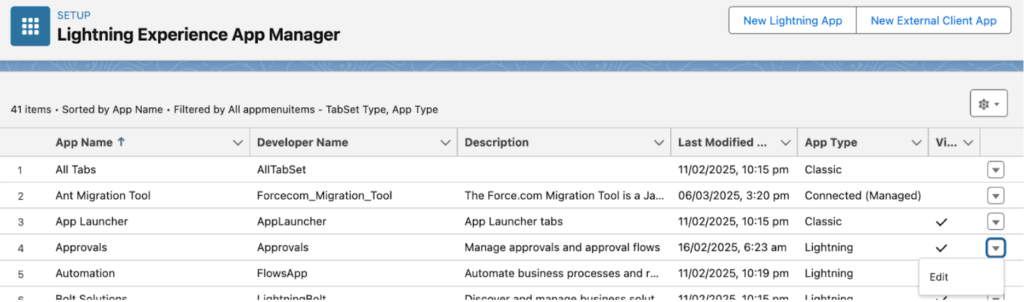
  • Click on the gear icon in Salesforce & Select Setup.
  • In the Quick Find box, search for ā€œApp Managerā€ and select it.
  • Choose the respective app name based on your business use case (ensure it is a Lightning app) & click Edit. 
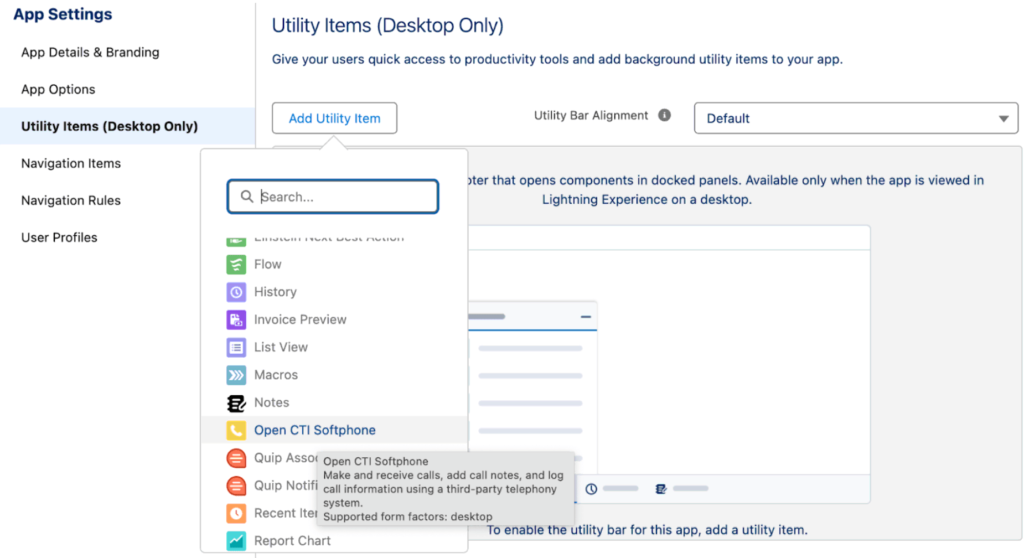
  • Navigate to Utility Items (Desktop Only) and click Add Utility Item.
  • Select Open CTI Softphone from the options. 
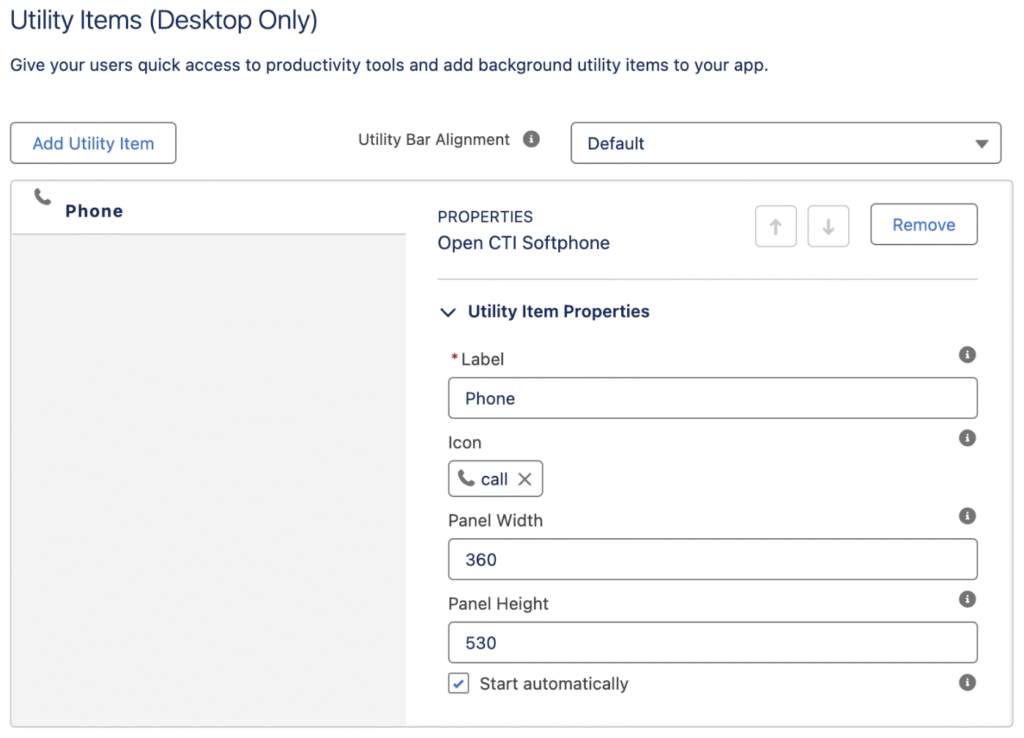
In the Properties section:

  • Change the Label to reflect your business requirement (e.g., ā€œWorkDial Dialerā€).
  • Set the Panel Width to 360 pixels and Panel Height to 530 pixels.
  • Check the box for Start Automatically to launch the dialer on app load.
  1. Click Save to apply the changes.
  2. Verify the dialer appears in the app menu for the selected app.
    This configuration ensures seamless access to the dialer within your Salesforce environment.

All set! After signing in, go to the app where you added the dialer and make a call by searching for a record or entering a phone number.

Note: Based on your country selection, you can either include the country prefix or skip it

What are your Feelings

Share This Article :

  • Facebook
  • X
  • LinkedIn
  • Pinterest
Still stuck? How can we help?

How can we help?

Updated on February 27, 2026
4. Users Assignment at Call CentreĀ 1. Package Installation
DialForce Logo Icon (Purple)

WorkDial

WorkDial is the only 100% native CTI built for Salesforce. Trusted by Sales, Support, and RevOps teams to power secure, real-time conversations directly inside Salesforce.

thank you
thank you
WorkDial
  • Product
  • Pricing Page
  • Help Articles
  • Blog
  • Contact
  • Request a Demo
Terms and Policies
  • Terms of Service
  • Privacy Policy
  • Cookie Policy
Contact Us
support@workdial.io
sales@workdial.io
Follow Us
Linkedin Youtube

1st Flr,Flat No.103,DNo8-4-300/1/A, Tower-B,Kalpataru Residency,,

Hyderabad, Telangana, 500018