
Smart Panel: search, dial pad & call features
The Smart Panel is the hub of the CTI dialer. Click the Phone icon to make, receive, and manage regular and WhatsApp calls, all inside Salesforce.
WorkDial is a Salesforce-native CTI platform: this page covers the Smart Panel’s search, dial pad, recent calls, and in-call features. For the full workspace tour, see Smart Panel (agent workspace).
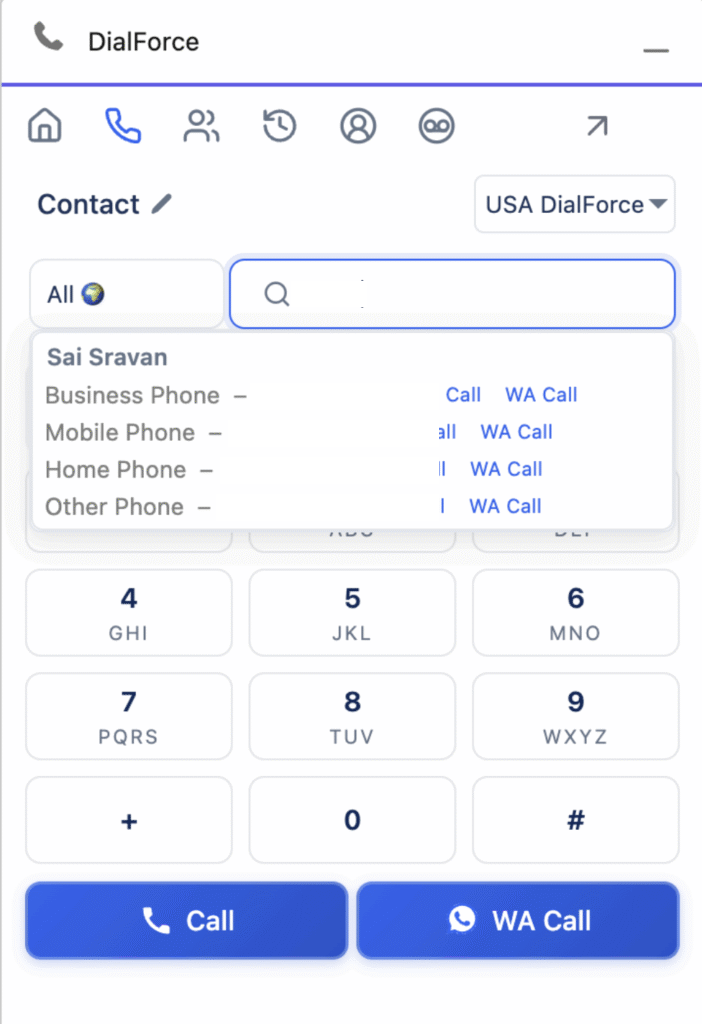
Search and call
Quickly locate contacts using a name or phone number. You can select between:
- Normal calls via the business number.
- WhatsApp Business calls directly from Salesforce.
This enables quicker customer outreach with consistent interaction tracking.
Dial pad
Manually input phone numbers for direct calling. This helps when reaching new or unlisted contacts.
Recent calls
The Recent Calls section displays your last 20 call records, helping you reconnect instantly with previous contacts.
International calls
Capabilities include:
- Selecting a country from the dropdown to auto-apply the country code.
- Selecting All and manually entering the desired country code.
This supports managing global customer communications from a unified interface.
Search object based filter. Search across Salesforce objects (Leads, Contacts, or Cases) to find names and numbers quickly. Relevant records appear based on the selected object.
CTI numbers dropdown
View all CTI Numbers assigned to you.
Call features
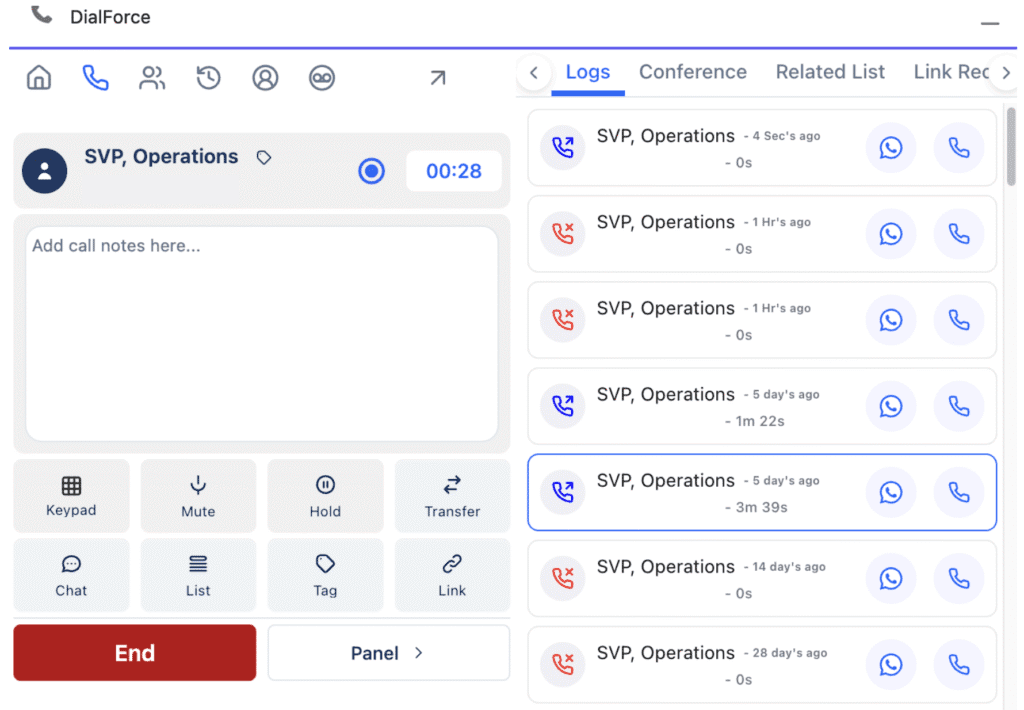
Built-in tools for live call management include:
- Record calls for quality and training.
- Take notes during the call.
- View call duration in real time.
- Mute, hold, or transfer calls to another agent.
- Send SMS directly from the call window.
- Add tags or link calls to Salesforce records.
- End or continue calls without leaving the panel.
Smart Panel sections
Logs. View complete call history with time, duration, call recording, notes, assigned tags, and call type.
Related list. Access or create related Salesforce records linked to the call.
Conference. Start or manage conference calls with multiple participants. You can:
- Transfer to another agent or call center numbers.
- Invite external agents using the nine-dot icon.
- Enable or disable Warm Transfer.
- End or leave conferences at any time.
Note: See Conference & call transfer for full details.
Link record. Attach the call to any Salesforce object or record for accurate tracking.
Tags. Categorize and color-code calls using tags for easy organization.
SMS. Send or view text messages related to calls. Attach files and reply instantly.
Feedback. Collect quick feedback or notes after the conversation and save them for later reference.
Post-call actions
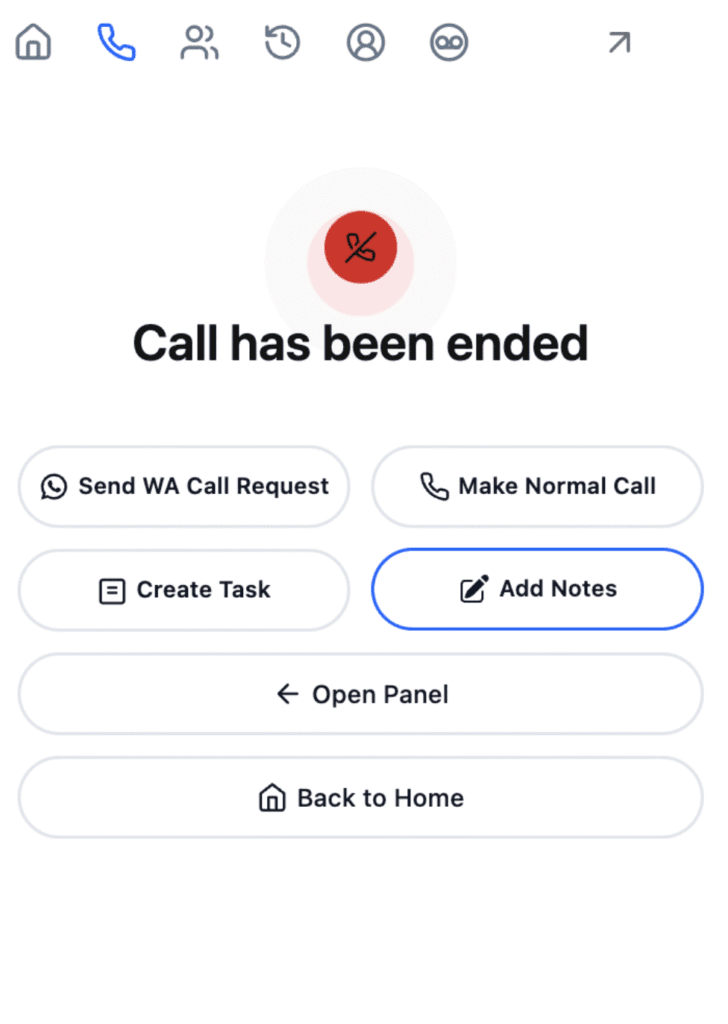
After a call ends, you can:
- Send a WhatsApp Call Request.
- Make another regular call.
- Create a Task or add notes.
- Reopen the Smart Panel to review details.
- Return to the home screen anytime.