
WorkDial
Pricing Help Articles Blog Contact
Request a Demo Start a Trial Start a Trial

Functional Docs

  • Conference & Call Transfer
  • WorkDial Dashboard – Complete User Guide
  • Mobile Call Feature – Simple & Detailed Explanation
  • Smart Panel (Agent Workspace)
  • In-Call Controls (Mute, Hold, Transfer, Conference)
  • Taking Notes & Call Dispositions
  • Sending SMS/MMS During a Call
  • Accessing Related Records During Calls
  • Routing Methods in WorkDial
  • Business Hours & Out-of-Hours Routing
  • Offline Routing Scenarios
  • IVR Setup & Logs
  • Creating a Batch Call List
  • Explore WorkDial Smart Dialer

Get Started

  • Subscription Purchase and Management Guide (Step-by-Step)
  • Setup
    • 1. Package Installation
    • 2. Twilio Signup, Account Upgrade, and Number Acquisition
    • 3. Connect Twilio and WorkDial in Salesforce
    • 4. Users Assignment at Call Centre 
    • 5. Add the Dialer to the App Menu (Utility Window)
  • Basic Configuration
    • CTI Number Setup Guide (Using Twilio Integration)
    • CTI Number Setup Guide (Step-by-Step)
    • Batch Calling Setup and Usage Guide
    • Call Settings
    • Country & Number Configuration
    • Business Hours & Offline Routing
    • Object Preferences for Incoming Calls
    • Caller ID & Name Field Configuration
    • General Settings
    • How to Add the CTI Dialer
    • Smart Panel — Your Complete Salesforce CTI Dialer Interface
View Categories
  • Home
  • Docs
  • Functional Docs
  • Conference & Call Transfer

Conference & Call Transfer

3 min read

The Conference / Call Transfer features in WorkDial CTI make it easy for agents to collaborate and manage calls directly within Salesforce. Agents can start or manage multi-party conference calls, invite 

both internal and external participants, and use Warm Transfer for smooth customer handovers.

With these capabilities, teams can:

  • Manage multi-party conference calls
  • Transfer live calls to other agents or call center numbers
  • Invite external participants during an active call
  • Enable or disable Warm Transfer as needed
  • End or leave conference sessions at any time

These features help improve communication, reduce call handling time, and deliver a better customer experience by connecting the right people quickly and efficiently.

Starting a Conference #

To start a conference call in WorkDial CTI:

Step 1: While on an active call, click the “Conference” button.
Step 2: Choose the participant you want to add – this can be an agent, a CTI number, or an external number.

Step 3: Use the search bar to find the agent, CTI number, or external contact based on your need.
Step 4: Click on the selected contact to initiate the call.
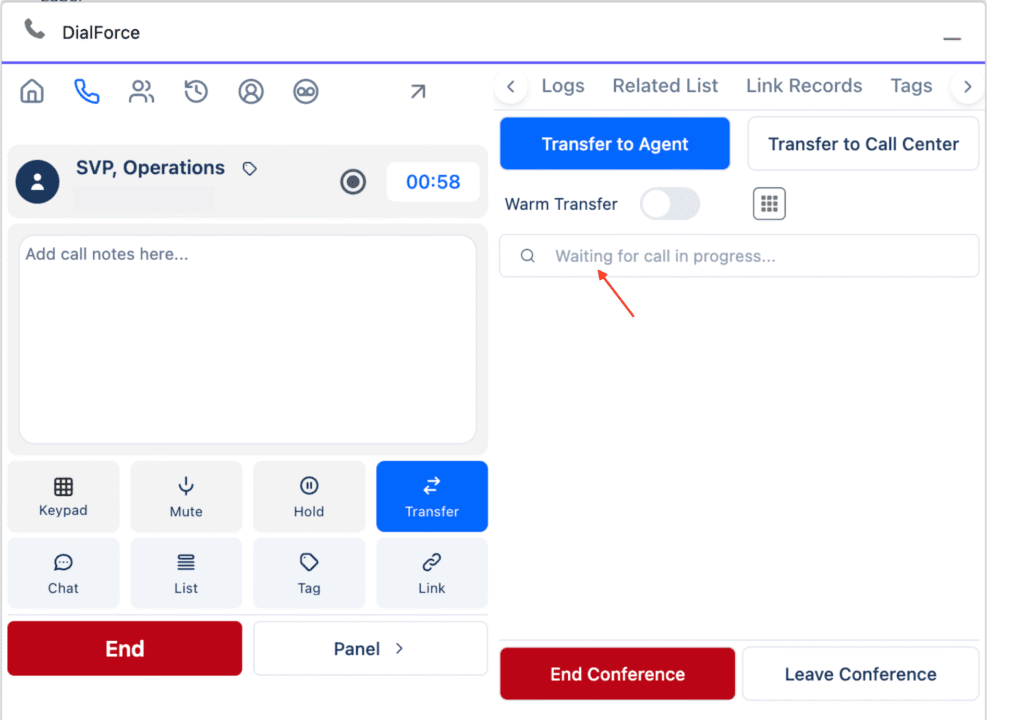
Once you initiate the call, the participant’s status will appear in the conference list below:

  • Queued: The call is connecting.
  • Connected: The participant is active in the conference.
  • Completed: The participant has ended the call.

Using Warm Transfer #

If Warm Transfer is enabled:

  • You and the added participant (agent, CTI number, or external contact) can speak privately while the customer is on hold.
  • The customer will not hear the conversation until you click the “Merge All” button.
  • After clicking Merge All, everyone on the call (including the customer) can hear each other.

You can also click the “X” button beside any participant in the conference list to remove them from the call.

Agent Availability #

When searching for agents:

  • The color indicator beside their name shows their availability status:
    • Green: Online / Available
    • Red or Grey: Offline or Busy

This helps you quickly identify who is available for conference or transfer.

Ending or Leaving a Conference #

  • Leave Conference: You can leave the conference at any time. The other participants will remain connected.
  • End Conference: You can end the entire conference for all participants when the conversation is complete.

Note : #

During an inactive call, if you click the Transfer button, the search option may be temporarily disabled for a few seconds.
Wait approximately 3 seconds for the call to connect. If the search option is still disabled, click the Transfer button again.

The best way to ensure the transfer works properly is to wait until the call becomes active — meaning you can already speak with the customer.
If the call is still ringing, it is not yet active, which is why the transfer and search options remain temporarily disabled.

Once the call is active, you can proceed to transfer it to another agent, CTI number, or external number as needed.

In Summary #

The WorkDial CTI Conference and Transfer features make it simple to:

  • Connect multiple participants in real time
  • Manage warm transfers for smooth handovers
  • Control who joins, stays, or leaves a conference
  • Collaborate efficiently without leaving Salesforce
What are your Feelings

Share This Article :

  • Facebook
  • X
  • LinkedIn
  • Pinterest
Still stuck? How can we help?

How can we help?

Updated on February 27, 2026
Explore WorkDial Smart DialerWorkDial Dashboard – Complete User Guide
Table of Contents
  • Starting a Conference
  • Using Warm Transfer
  • Agent Availability
  • Ending or Leaving a Conference
  • Note :
    • In Summary
DialForce Logo Icon (Purple)

WorkDial

WorkDial is the only 100% native CTI built for Salesforce. Trusted by Sales, Support, and RevOps teams to power secure, real-time conversations directly inside Salesforce.

thank you
thank you
WorkDial
  • Product
  • Pricing Page
  • Help Articles
  • Blog
  • Contact
  • Request a Demo
Terms and Policies
  • Terms of Service
  • Privacy Policy
  • Cookie Policy
Contact Us
support@workdial.io
sales@workdial.io
Follow Us
Linkedin Youtube

1st Flr,Flat No.103,DNo8-4-300/1/A, Tower-B,Kalpataru Residency,,

Hyderabad, Telangana, 500018